Advanced warehouse management is where a Dynamics 365 Supply Chain Management project becomes physical. Finance configuration lives on screens; warehouse configuration lives on the floor, in the hands of pickers, forklift drivers and shipping clerks who need the right task on their device at the right moment. When the design is right, work flows from order release to the dock with very little supervision. When it is wrong, the warehouse falls back on paper, workarounds and overtime within days of go-live.
The challenge is that the warehouse management processes in Dynamics 365 Supply Chain Management are extremely configurable. Locations, zones, location profiles, work templates, location directives, wave templates and mobile device menu items all interact, and a single misplaced query or sequence number can send pick work to an empty bin. Most failed warehouse go-lives do not fail because the software lacked a capability. They fail because the configuration was never tested against real order profiles and real volumes.
This guide is written for operations leaders, warehouse managers and IT directors at high-volume, multi-site distributors and manufacturers running, or moving to, enterprise Dynamics 365. It sets out how the building blocks fit together, the design decisions that matter most, and the testing discipline that separates a calm go-live from a chaotic one.
What you will get from this guide
- A clear test of when advanced warehouse management is the right tool, and when a simpler option fits better
- A location and zone design guide, including location profile patterns
- Proven work-template and location-directive patterns for inbound and outbound flows
- A mobile device rollout plan for the Warehouse Management mobile app
- A six-phase implementation roadmap with a suggested effort split
- A go-live readiness checklist and a five-scenario volume test script
Is Advanced Warehouse Management the Right Tool?
Before designing a single location, confirm that advanced warehouse management is the right fit. Dynamics 365 Supply Chain Management is an enterprise application, separate from Business Central, built for organizations with complex, high-volume, often multi-site operations. Within it, a warehouse can run on basic inventory management or be enabled for full warehouse management processes, with license plates, system-directed work and mobile execution.
Mid-market companies frequently do not need this level of control. Many distributors and manufacturers run very capable warehouses on the warehousing features of Business Central, which covers bins, put-aways, picks and warehouse shipments for small and mid-sized operations. If you are still deciding between platforms, our article on Business Central or Dynamics 365 Finance explains how the two ERP families differ in scope.
Where Dynamics 365 Supply Chain Management is already the platform, the question becomes which warehouses to enable for advanced processes. A small spares store or a satellite depot may not justify the setup and discipline that system-directed work requires, while a regional distribution centre almost always does.
| Capability | Business Central warehousing | D365 SCM basic inventory | D365 SCM advanced WMS |
|---|---|---|---|
| Typical scale | Small to mid-sized sites | Low-complexity enterprise sites | High-volume enterprise sites |
| Bin or location control | Yes | Partial | Yes |
| License plate tracking | No | No | Yes |
| System-directed work and work templates | Partial | No | Yes |
| Wave planning and replenishment by demand | Limited | No | Yes |
| Load planning and dock control | Limited | Limited | Yes |
| Configuration and testing effort | Moderate | Low | High |
- IfHigh order lines per day, many SKUs, multiple pickers and a need for traceable license platesThenEnable warehouse management processes and design system-directed work
- IfLow volume, a handful of staff and simple stock movementsThenKeep the site on basic inventory management and revisit as volume grows
- IfMid-market business evaluating ERP for the first time with straightforward warehousingThenEvaluate Business Central warehousing before committing to enterprise WMS
- IfBatch, lot or shelf-life control drives picking decisionsThenEnable advanced WMS with batch-aware location directives and reservation rules
The Building Blocks of Dynamics 365 Warehouse Management
Advanced warehouse management is a chain of configuration objects, each answering one question about how work is created and executed. Understanding the chain is the single most useful thing a project team can do in the first fortnight, because every later design conversation refers back to it.
The physical model starts with sites and warehouses, then breaks each warehouse into locations grouped into zones. Location profiles describe how each type of location behaves. Items are set up with storage and tracking dimension groups that determine whether license plates, batches or serial numbers are tracked. On top of the physical model sits the logic layer: work templates decide what work is created, location directives decide where stock is picked from and put to, and wave templates decide how outbound demand is processed in batches.
Sites and warehouses
The legal and physical structure. A warehouse must be enabled for warehouse management processes to use advanced features.
Locations and location formats
Every bin, rack position, staging lane and dock door, named with a consistent aisle-rack-shelf-bin format.
Zones and zone groups
Groups of locations such as bulk, forward pick, cold or hazardous, used by directives and work templates.
Location profiles
Behaviour rules per location type: license plate tracking, mixed items, mixed batches and dimension checks.
License plates
Identifiers for pallets, cases and totes that let the system move and count whole units in one scan.
Work templates
Rules that split each work order type into pick and put lines and set header breaks and work classes.
Location directives
Ordered queries that choose the pick or put location for each work line, with strategies such as consolidation.
Wave templates
Outbound processing steps that allocate, replenish, create and release work for groups of shipments.
Mobile device menu items
Menus in the Warehouse Management mobile app that tell workers which work to perform and how.
Work pools are worth adding to this list once the basics are clear. They group work so supervisors can monitor and assign it, for example separating outbound picking from replenishment work. Unit sequence groups, reservation hierarchies and inventory statuses also play a part, and each should be designed deliberately rather than left at defaults.
Location and Zone Design Guide
Location design is the foundation everything else depends on, and it is the hardest thing to change after go-live. Start from the physical layout, not from the system. Walk the warehouse with the operations lead, photograph each area and agree how goods actually move from the receiving dock to storage, from storage to pick faces, and from pick faces to packing and shipping.
Design zones around how work flows
Zones should reflect how you want work directed, not just where racks happen to stand. A common pattern separates receiving, bulk reserve, forward pick, packing, staging and shipping, with additional zones for temperature-controlled, high-value or hazardous goods. Location directives and work templates query zones, so a clean zone model makes those rules simpler to write and easier to maintain.
Use location profiles to enforce behaviour
Location profiles carry the rules that prevent the warehouse from drifting into disorder. Bulk locations typically track license plates and allow a single item per location, while forward pick faces often do not track license plates so pickers can pick individual eaches quickly. Staging and dock locations are usually license-plate tracked so loads can be confirmed with a single scan.
| Location type | License plate tracked | Mixed items allowed | Typical use |
|---|---|---|---|
| Receiving dock | Yes | Yes | Inbound pallets awaiting put-away |
| Bulk reserve | Yes | Usually no | Full pallets and overstock |
| Forward pick face | Often no | No | Case and each picking, fixed locations where useful |
| Packing station | Yes | Yes | Consolidation into shipping containers |
| Outbound staging | Yes | Yes | Picked goods waiting for loading |
| Quarantine or QA hold | Yes | Yes | Stock under an inventory status block |
Name locations so a new worker can find them
A consistent location format such as aisle, rack, level and bin, printed on durable labels with barcodes that match the system exactly, saves more time than any clever directive. Agree the naming convention and label specification before data migration starts, and include label printing in the project plan rather than leaving it to the last week.
Plan capacity and dimension checks
If the warehouse depends on fitting pallets and cases into specific locations, capture item dimensions, unit conversions and location capacities early. Dimension and volume checks only work when the master data behind them is accurate. Where that data is unreliable, it is better to start with simpler rules and introduce capacity constraints once measurements have been validated.
Work Templates, Location Directives and Wave Templates
This is where most design time goes, and where most go-live issues originate. Work templates and location directives are evaluated in sequence, with queries that filter by warehouse, item, zone, order type and other criteria. The first matching record wins, so ordering matters as much as content.
Work-template patterns that hold up
Create work templates per work order type, such as purchase orders, sales orders, transfer issue, transfer receipt, replenishment and cycle counting. Keep the number of templates small and the queries readable. A typical sales pick template contains a pick line from the storage location and a put line to the outbound staging or packing location. Use header breaks to split work sensibly, for example by shipment or by zone, so a single piece of work never sends a picker across the entire building.
Location directives in the right order
Location directives decide which location supplies a pick and which receives a put. Write them from most specific to most general: special handling items first, then batch-controlled or shelf-life items, then the standard rule, then a catch-all. Strategies such as consolidating with existing stock or choosing an empty location with no incoming work help put-away behave predictably.
A missing catch-all directive stops the warehouse
If no location directive matches a work line, work creation fails and orders stall at release. Always finish each directive set with a general fallback rule, and test what happens when a new item, a new zone or an unusual unit of measure appears. Discovering a gap on the first morning of go-live is one of the most common and avoidable warehouse incidents.
Wave templates for outbound control
Wave templates define how outbound shipments are processed together. Typical wave steps allocate inventory, trigger demand replenishment, create work and release it to the floor. Some operations process waves automatically when orders are released; others prefer supervisors to build and release waves manually by carrier cut-off. Decide this with the shipping team, because it shapes the daily rhythm of the warehouse.
- 1ReceiveWorker scans purchase order or ASN and license plate at the dock
- 2Put awayLocation directive selects a bulk or pick location and creates put work
- 3Release and waveSales orders are released to the warehouse and processed by a wave template
- 4ReplenishDemand or min-max replenishment refills pick faces before picking starts
- 5PickMobile device directs the picker to locations and confirms quantities by scan
- 6Pack and stageGoods are consolidated, containerized where used, and moved to staging
- 7Load and shipLoad is confirmed at the dock door and the shipment is posted
Replenishment, Cycle Counting and Load Planning
Three supporting processes decide whether a warehouse stays healthy after the first month. They are often configured late in the project, which is a mistake, because each one depends on the location and work design already being right.
Replenishment
Replenishment keeps forward pick faces stocked so pickers are not sent to bulk reserve for every order. Min-max replenishment refills locations to a target level on a schedule, while wave demand replenishment creates refill work based on the specific orders in a wave. Most high-volume operations use both: min-max for fast movers and demand replenishment as the safety net. Replenishment templates, fixed picking locations and their thresholds must be tuned with real velocity data.
Cycle counting
Cycle counting replaces disruptive full stock counts with a steady programme of counting work. Cycle counting plans and thresholds can generate counting work by location, item or zone, and location profiles can control where counting is enabled. Decide who approves counting differences and how inventory status is used for stock under investigation, because count accuracy directly drives pick reliability.
Load planning
Load planning groups shipments onto loads so the dock team can schedule trucks and confirm what leaves the building. The load planning workbench lets planners build loads by carrier, route or destination, and load templates set capacity limits. Organizations with complex freight requirements may extend this with transportation management features, which should be scoped as a separate decision.
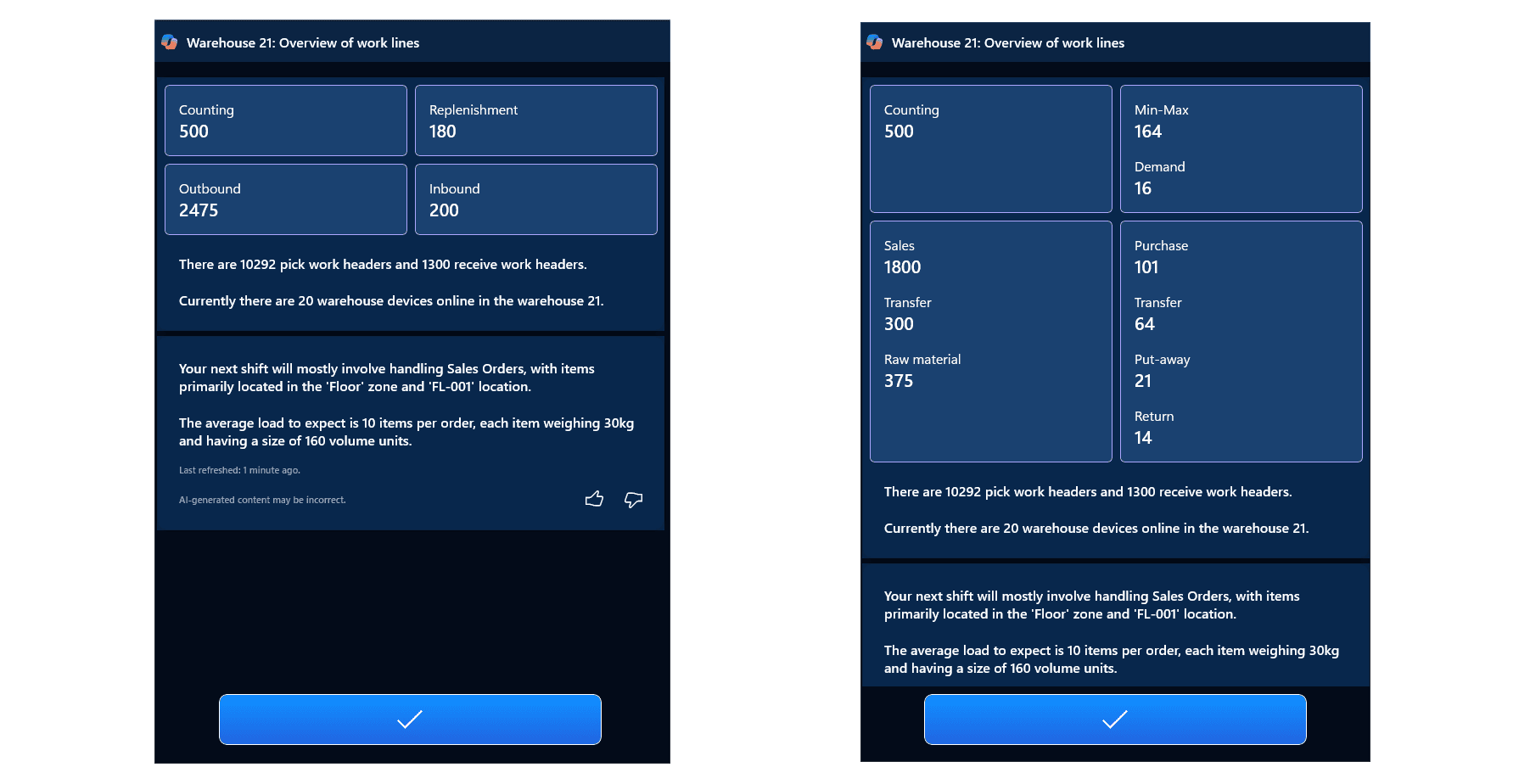
The warehouse Copilot experience in the mobile app shows how these processes come together in one view for a shift, summarising open work by type so supervisors and workers can see where the pressure will be.
Mobile Device Rollout Plan
The Warehouse Management mobile app is the face of the system for most warehouse staff. A good configuration with a poor device rollout still produces a poor go-live, so treat mobile execution as its own workstream with an owner, a budget and a test plan.
Mobile device menu items define what each worker can do. Directed work items, filtered by work class, present system-created work in sequence. Indirect items support activities such as inquiries, license plate movements and adjustments. Keep menus short and role-based: a picker should see picking and a few inquiries, not every option the warehouse supports.
Hardware and scanning
Select rugged devices and confirm barcode symbologies, scan speed and battery life for full shifts in the real environment.
Wi-Fi coverage
Survey every aisle, freezer and yard area. Dead spots in racking cause failed confirmations and duplicated work.
Workers and menus
Set up warehouse workers, default warehouses and role-based mobile device menus, with work classes per role.
Labels and printing
Agree license plate, location and shipping label formats, and test label printers with the actual stock and adhesive.
Access and security
Plan sign-in, device management and how shared devices are assigned at the start of each shift.
Floor support
Arrange super-users on every shift for the first weeks and a clear route to raise issues quickly.
Pilot one process
Start with receiving and put-away in one zone, using a small group of experienced workers to validate menus, labels and scan behaviour.
Extend to picking
Add picking and replenishment work for a subset of SKUs, measuring confirmation errors and travel paths.
Train by role
Run short, hands-on sessions on real devices in the real warehouse, built around each role's daily tasks.
Rehearse a full shift
Simulate an entire shift with all roles on devices, including exceptions such as short picks and damaged stock.
Go live with floor support
Launch with super-users on every shift and daily reviews of open work, failed work and device issues.
A Six-Phase Implementation Roadmap
A warehouse project runs inside the wider Dynamics 365 programme but needs its own rhythm, because physical readiness, labels, devices and data must all converge on the same weekend. The roadmap below reflects how we structure warehouse workstreams within an implementation, and it aligns with the phases in our ERP implementation guide.
- 1DiscoverPhase 1
- walk the floor and map flows
- capture order profiles and volumes
- agree site scope
- 2DesignPhase 2
- location and zone model
- location profiles
- work, directive and wave design
- 3BuildPhase 3
- configure warehouses and locations
- build templates and directives
- set up mobile menus
- 4Data and devicesPhase 4
- migrate items, dimensions and stock by license plate
- install devices
- print labels
- 5TestPhase 5
- process tests by flow
- volume tests with real order profiles
- full-shift rehearsal
- 6Go-live and stabilizePhase 6
- cutover count
- hypercare on every shift
- tune replenishment and directives
The effort split below is a suggested planning allocation for the warehouse workstream, not a benchmark. Teams routinely underestimate testing and data, and over-invest in configuration that has not yet been proven on the floor.
Data deserves particular attention. Opening stock must be loaded by location and, where tracked, by license plate, batch or serial number, which usually means a physical count shortly before cutover. Our article on ERP data migration best practices covers the reconciliation discipline this requires.
Go-Live Readiness and Volume Testing
Process testing proves that each flow works once. Volume testing proves that the warehouse can run a real day. The difference matters because issues such as slow wave processing, directive gaps for unusual items, replenishment that triggers too late and device congestion only appear under realistic load.
The five-scenario volume test script
Build test data from real historical orders, including your busiest day of the past year, and run each scenario with the people who will do the work. Record elapsed times, failed work, manual interventions and any orders that could not be shipped.
| Scenario | What to run | What to measure |
|---|---|---|
| 1. Peak inbound day | Receive a peak day of purchase orders and transfers with put-away | Dock-to-stock time, put-away failures, location capacity issues |
| 2. Peak outbound day | Release a peak day of sales orders through waves to shipping | Wave processing time, work creation failures, pick accuracy |
| 3. Replenishment under pressure | Run picking while min-max and demand replenishment compete | Pick faces running empty, replenishment work completed in time |
| 4. Exceptions | Short picks, damaged stock, inventory status blocks, partial loads | Whether workers can resolve exceptions on the device without paper |
| 5. Full-shift rehearsal | All roles on devices for a full shift, including cycle counts and loading | Device performance, Wi-Fi drops, supervisor visibility of open work |
- Location and zone model reflects the physical layout and is labelled on the floor
- Location profiles tested for every location type
- Work templates and location directives include a tested catch-all rule
- Wave templates match shipping cut-offs and carrier schedules
- Replenishment thresholds tuned with real velocity data
- Mobile device menus configured and approved by role
- Devices, Wi-Fi coverage and label printers proven in every area
- Opening stock counted and loaded by location and license plate
- All five volume test scenarios completed with issues resolved
- Workers trained on devices and super-users assigned to every shift
- Cutover plan includes a stock freeze, count and reconciliation step
- Hypercare support, escalation route and daily review meeting agreed
How Econix Helps
Econix designs and delivers Dynamics 365 Supply Chain Management warehouse workstreams for distribution and manufacturing organizations across Canada and the USA. We start on the warehouse floor, design locations, work and directives around how goods actually move, and test with your real order history before go-live.
Our Canadian food and beverage supply chain case study shows how this approach works in a regulated, high-volume environment. For organizations moving from Dynamics AX, our AX to Dynamics 365 upgrade service carries warehouse design forward rather than simply converting it, and Support 365 keeps directives, waves and replenishment tuned as volumes and product ranges change after go-live.
Related Reading
- Dynamics 365 SCM: Business Problems Solved - the operational problems Supply Chain Management is built to address
- Batch vs Discrete Manufacturing in D365 SCM - how manufacturing mode shapes warehouse and production design
- ERP Data Migration Best Practices - loading opening stock and master data with confidence
- ERP Implementation Checklist 2026 - the wider project checklist your warehouse workstream sits inside
- Business Central or Dynamics 365 Finance: Which Fits? - choosing the right ERP family before designing the warehouse
Econix Infotech
Planning a Dynamics 365 warehouse go-live?
Talk to Econix about location design, work templates, mobile rollout and volume testing for your sites.
Referenced In
- After Go-Live: What Business Central and Dynamics 365 Support Should Include
- ERP Implementation Cost in Canada: What to Budget in 2026
- Batch Order Processing vs Discrete Manufacturing in Dynamics 365 SCM: What You Need to Know
- How Dynamics 365 Supply Chain Management Solves 5 Critical Operations Pain Points
- SAP vs Microsoft Dynamics 365 for the Mid-Market: Fit and Cost