Every tire distributor knows the call. A dealer needs four 225/65R17 winter tires by tomorrow morning. The branch taking the call shows zero, so the counter person says no, or quotes a two-week special order. Meanwhile, forty kilometres away, another branch has twelve of exactly that tire sitting on a rack, and a third has eight more that have been there for three years. The sale is lost, the aged stock gets older, and purchasing places another order with the manufacturer.
This is not a demand problem. It is a visibility and decision problem. Multi-location distributors usually hold enough inventory to fill far more orders than they do, but the stock is fragmented across branches and warehouses, and nobody can see it as one network or know which units should be sold first. Add DOT date codes to the picture and the question becomes sharper: not just whether a tire is in stock somewhere, but how old it is, and whether it should be the next one sold.
This guide sets out how to treat a branch network as one sellable pool, when to transfer and when to backorder, how to capture DOT information at receiving, and how to turn tire age into a working policy. It is written for operations, purchasing and branch managers running on Microsoft Dynamics 365 Business Central, and it shows where the Econix Tire & Automotive Distribution app for Business Central supports each step.
What you will get from this guide
- A network-availability playbook for turning separate branches into one sellable pool
- Six decision rules for choosing between a transfer, a backorder or a substitute
- A ten-step DOT capture procedure for the receiving dock
- A tire-age policy template with four age bands and an action for each
- A weekly inventory review agenda for operations, purchasing and branch managers
- A clear view of how Business Central and the Econix tire app support each step
Why stock you already own goes unsold
Tire inventory is unusually hard to manage. A single distributor may carry thousands of SKUs across sizes, load indexes, speed ratings, brands and seasons. Demand swings sharply with the weather, especially at winter changeover. Tires are bulky, so each branch can only hold so much, and transfers cost real money in trucks and labour. On top of that, every tire carries a manufacturing date that customers and fleet buyers increasingly ask about.
When systems and habits treat each branch as its own business, three things happen. Counter staff only sell what they can see locally. Purchasing replenishes each branch independently, so the network as a whole carries more stock than it needs. And older stock is never deliberately moved to where it would sell, so it ages in place until it has to be discounted. Each of these is fixable without buying a single extra tire.
Branch-only visibility
Counter staff see their own location and say no when the tire is a short transfer away.
Unknown tire age
Without DOT data on file, nobody knows which units are oldest and should sell first.
Reserved but not moving
Stock committed to old orders or quotes looks unavailable even when the order will never ship.
Transfers decided ad hoc
Moves happen when someone remembers, not when the network needs them, so imbalances persist.
Deliverable 1: The network-availability playbook
The goal is simple to state: every person who sells or allocates tires should see what is available across the whole network, not just at their own location, and should know what it takes to get it to the customer. In practice that needs consistent item data, a clear definition of what "available" means, and a sales process that checks the network before saying no.
Start with clean, structured tire data
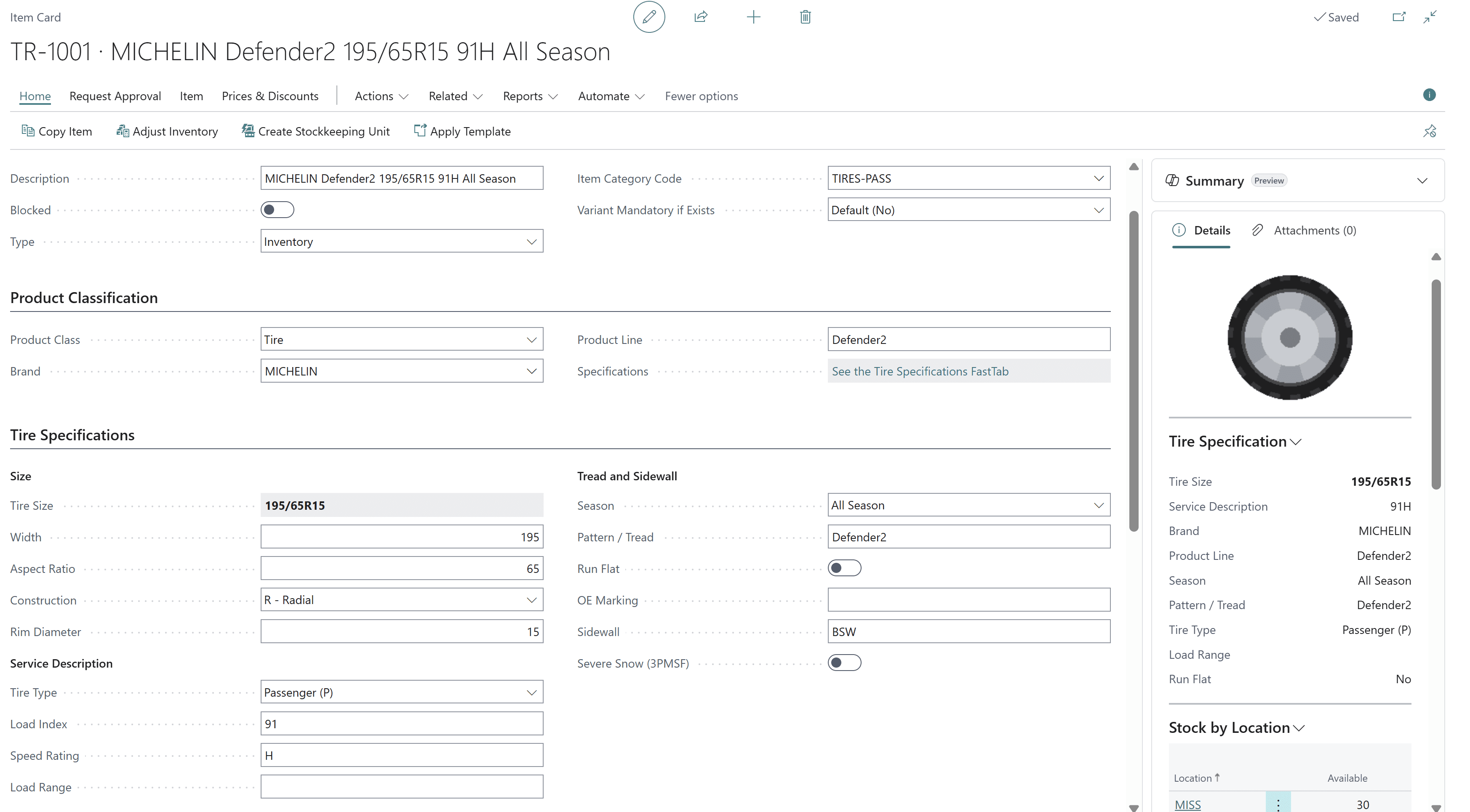
Network availability only works if the same tire is the same item at every branch. That means one item record per tire with structured specifications: width, aspect ratio, construction, rim diameter, load index, speed rating, season, brand and product line. When sizes live only in free-text descriptions, staff cannot search reliably and the same tire ends up set up twice. Our tire distribution ERP requirements checklist covers the full data model in detail.
Define "available" the same way everywhere
Inventory on hand is not the same as stock you can sell. A useful definition is on-hand quantity, less quantity reserved for confirmed orders, less units on quality hold, plus confirmed inbound purchase and transfer quantities with their expected dates. Agree on this definition once, and make sure every screen and report uses it. Disagreements about what "in stock" means are behind many broken promises to dealers.
Make the network check part of every quote
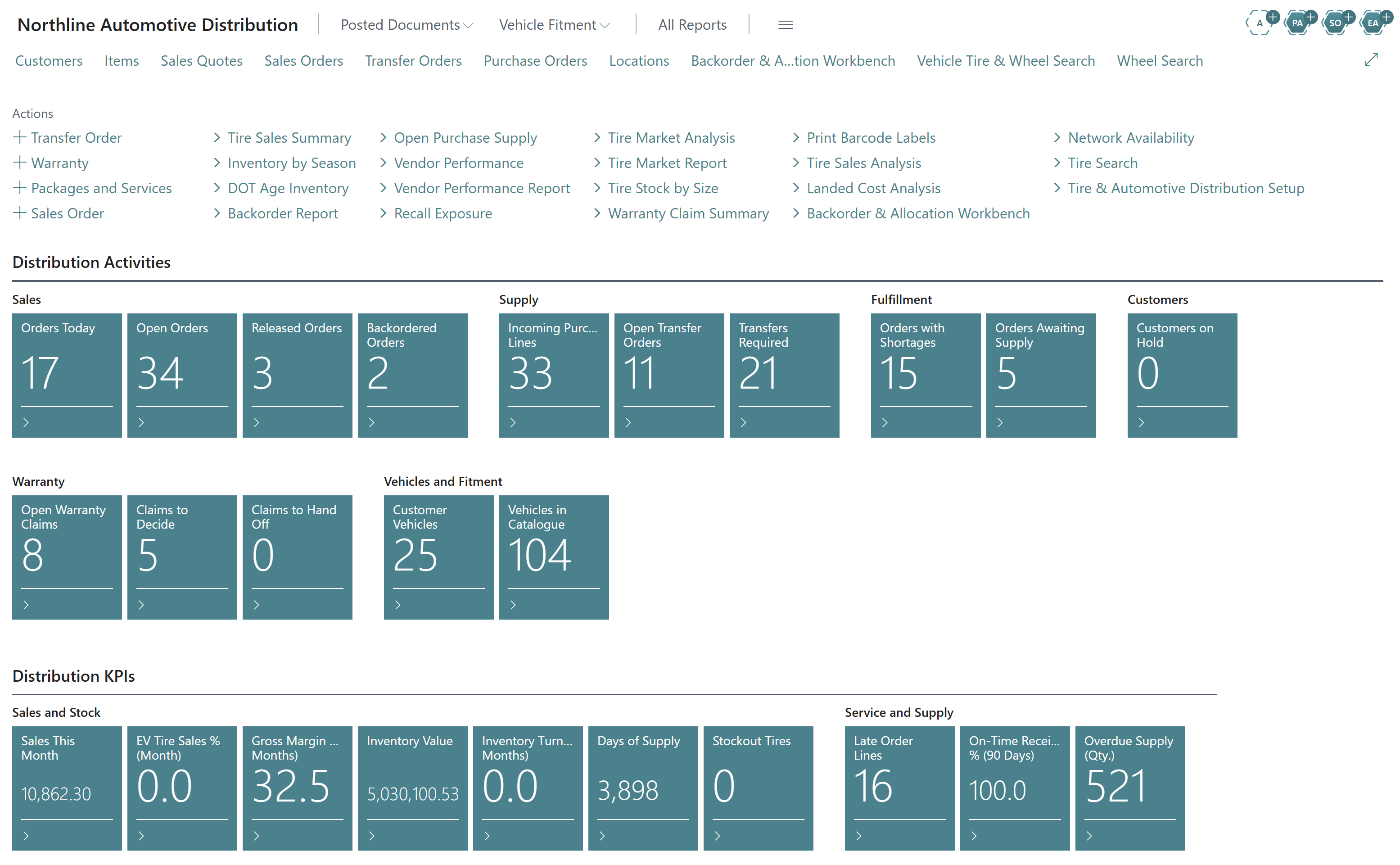
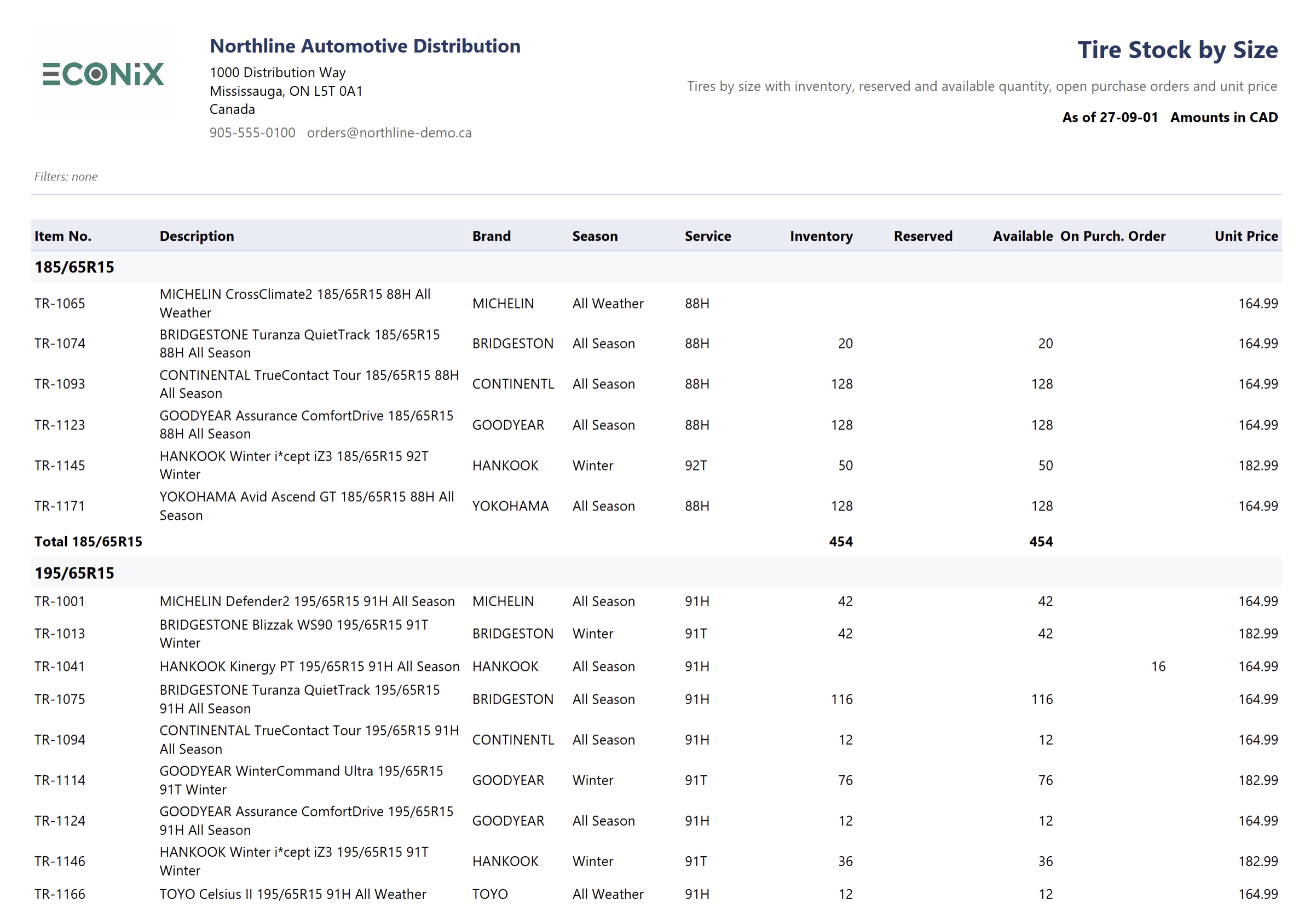
Train counter and inside sales staff to check network availability before declining or quoting a special order. The Econix Tire & Automotive Distribution app adds a Network Availability view to Business Central so staff can see stock for a tire across every location in one place, and a Tire Stock by Size report that groups inventory, reserved, available and on-order quantities by size. The Econix Tire & Automotive Distribution page shows the full set of tire views.
- 1Search by sizeStaff search the tire by size and specification, not by part number.
- 2Check the networkAvailability is shown across every location, net of reservations and holds.
- 3Choose the sourceThe nearest location with suitable, appropriately aged stock is selected.
- 4Create the transferA transfer order moves stock to the shipping branch on the next run.
- 5Confirm the promiseThe dealer receives a realistic delivery date before the call ends.
Deliverable 2: Transfer versus backorder decision rules
Once staff can see the whole network, the next question is what to do when the local branch is short. Transferring every shortage drives up freight and labour. Backordering everything frustrates dealers and sends them to competitors. A small set of agreed rules removes guesswork and makes the outcome consistent across branches.
- IfThe tire is available at another location on the regular truck route and the dealer needs it within two daysThenCreate a transfer order on the next scheduled run and confirm the delivery date.
- IfThe tire is available elsewhere but only by a special trip that costs more than the order's marginThenOffer the next scheduled transfer date, or a direct ship from the other branch if it serves the customer.
- IfAnother location holds older DOT stock of the same tireThenPrefer the older stock for the transfer, provided it is within the age band your policy allows for that customer.
- IfNo location has the tire but an equivalent size and specification is in stockThenOffer a substitute of equal or better load index and speed rating, with the customer's approval.
- IfNo location has the tire and a purchase order is due soonThenCreate a backorder linked to the inbound supply and give the expected date.
- IfDemand for the tire across the network is regularly met by transfers to the same branchThenReview that branch's stocking levels rather than continuing to transfer the same tire every week.
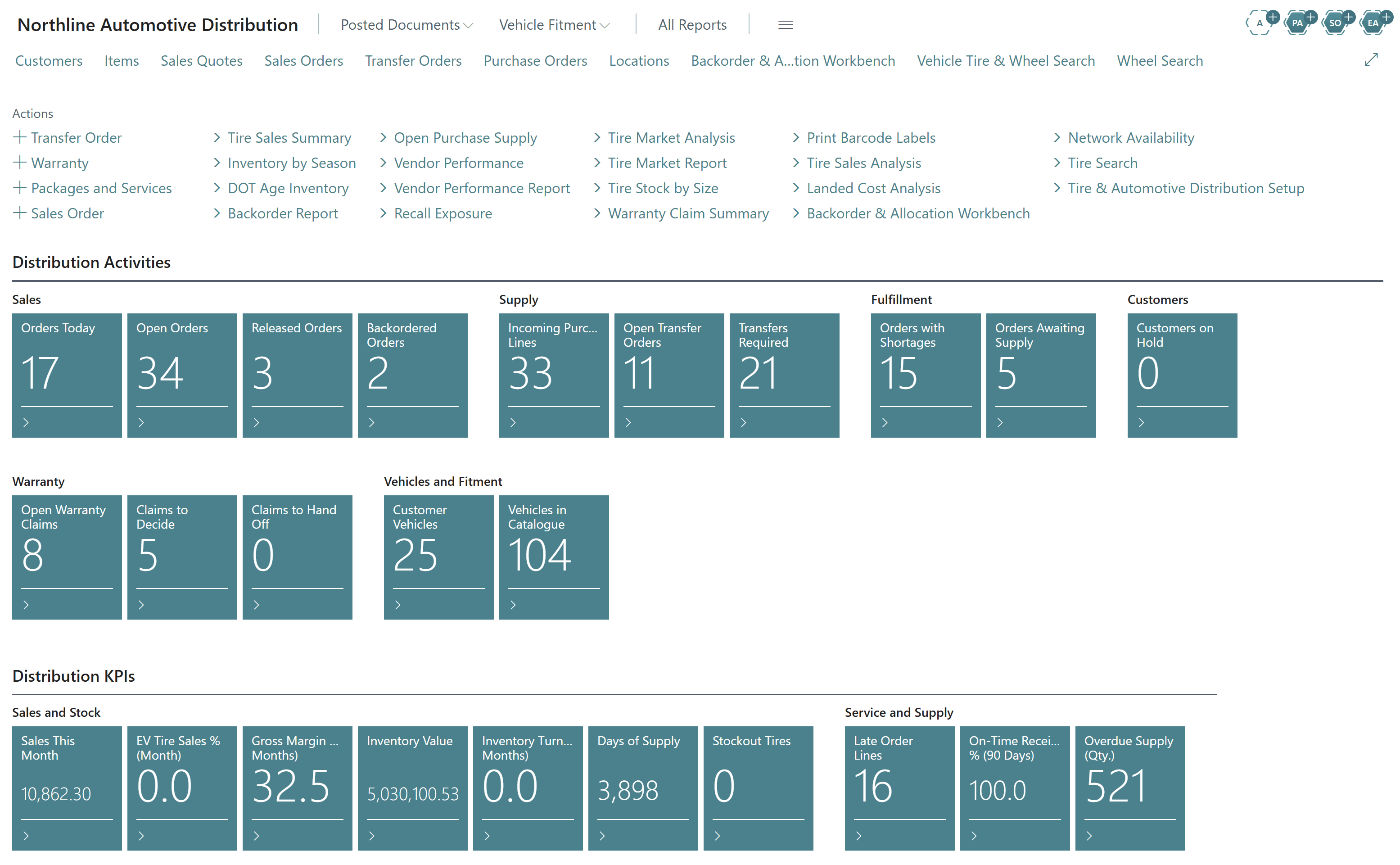
The Econix app brings these rules into daily work through two tools. A Transfers Required view highlights where stock should move between locations to cover open demand, and the Backorder & Allocation Workbench lets a coordinator review shortages, allocate incoming supply and decide which orders to fill first. Both appear on the tire role centres, so the work is visible rather than living in a spreadsheet.
| Factor | Transfer | Backorder | Substitute |
|---|---|---|---|
| Speed to customer | Next truck run | Depends on supplier | Immediate |
| Freight and handling cost | Partial | No | No |
| Uses existing stock | Yes | No | Yes |
| Helps sell older DOT stock | Yes | No | Partial |
| Needs customer approval | No | Partial | Yes |
| Risk of losing the sale | Low | Higher | Low if equivalent |
Deliverable 3: The DOT capture procedure at receiving
Every tire sold in North America carries a DOT Tire Identification Number moulded into the sidewall. The final four digits give the week and year of manufacture, so a code ending in 2324 means the 23rd week of 2024. That date is what lets you sell oldest stock first, answer customer questions about age, and identify affected units when a manufacturer issues a recall.
The difficulty is capturing it. If DOT data is not recorded when tires are received, it is almost impossible to reconstruct later. Business Central's item tracking provides the foundation, and the Econix app uses it to capture DOT and TIN information at receiving, so every unit in stock carries its manufacturing date from the moment it arrives.
Set up item tracking for tires
Configure tire items with item tracking so a DOT or TIN value is required when stock is received, moved and sold.
Prepare the receipt
Open the warehouse or purchase receipt against the purchase order so expected quantities are known before unloading.
Group tires by DOT on the dock
As pallets are broken down, group tires of the same item by date code so each group can be recorded once.
Read the date code
Read the last four digits of the DOT code on each group and check that the week and year make sense.
Record DOT on the receipt lines
Enter the DOT information through item tracking with the quantity for each date code group.
Flag anything unusual
Place tires with damaged, unreadable or unexpectedly old codes on a quality hold rather than putting them into available stock.
Check against the purchase terms
Compare received date codes with any age limits agreed with the supplier and raise exceptions immediately.
Post the receipt
Post once quantities and DOT data agree, so available stock and age data update together.
Label and put away
Print bin or barcode labels where used and store tires so older date codes are easiest to pick first.
Review the DOT age inventory
Check the DOT age inventory after receiving to confirm the new stock appears in the right age band.
Make DOT capture a dock habit, not an afterthought
DOT capture adds a little time to receiving, so build it into the standard receiving routine and staff schedules from day one. Grouping tires by date code as pallets are broken down keeps the extra effort small. The payoff comes later in every sale, transfer, warranty claim and recall check.
DOT data also supports recall exposure. When a manufacturer announces a recall for a range of date codes, the Econix app's Recall Exposure view helps identify which units in stock fall within the range and, through Business Central's item tracking history, which customers received affected units. Affected stock can be placed on a quality hold so it cannot be sold while the recall is handled.
Deliverable 4: A tire-age policy template
Capturing DOT data is only useful if it drives decisions. A tire-age policy turns date codes into clear actions: which stock sales should push, which should move to a busier location, and which needs a decision from management. The age bands below are a starting template. Set your own thresholds based on manufacturer guidance, your customer agreements and the expectations of fleet and dealer buyers.
| Age band | Status | Sales action | Inventory action | Who decides |
|---|---|---|---|---|
| 0 to 12 months | Fresh | Sell normally | Standard replenishment | Branch |
| 13 to 24 months | Prioritize | Sell first for that size | Consider transfer to faster-moving branch | Branch and purchasing |
| 25 to 36 months | Push | Targeted offers to price-led dealers | Transfer or promote; pause reorders | Operations manager |
| Over 36 months | Review | Disclose age and agree with customer | Clearance plan or supplier return where available | Operations and finance |
The Econix app's DOT Age Inventory view groups stock by age so managers can see how much of each tire falls in each band and at which locations. Combined with Inventory by Season, it helps buyers see whether last winter's tires are still sitting in branches as the next changeover approaches, which is often the clearest signal to transfer or promote before buying more.
Never let aged stock reach a customer by surprise
Some fleet, dealer and government buyers set maximum tire age in their purchase terms. Make sure order processing respects those limits, and disclose age openly when you offer older stock. A clear policy protects both margin and customer trust.
Deliverable 5: The weekly inventory review agenda
Visibility and policies only pay off when someone acts on them every week. A short, structured meeting between operations, purchasing and branch managers keeps the network balanced. Thirty to forty-five minutes is usually enough when everyone works from the same screens.
- 1Shortages and backorders10 minutes
- review open backorders and orders with shortages
- allocate incoming supply in the Backorder & Allocation Workbench
- agree dealer communications
- 2Transfers10 minutes
- review Transfers Required
- confirm moves for the next truck runs
- flag branches that receive the same tire repeatedly
- 3Tire age10 minutes
- review the DOT age inventory by location
- agree push and transfer actions for stock in the push and review bands
- 4Seasonal position5 minutes
- check Inventory by Season against the upcoming changeover
- adjust purchase plans before ordering more
- 5Holds and recalls5 minutes
- clear or escalate quality holds
- check recall exposure for any new manufacturer notices
- Open backorders reviewed and incoming supply allocated
- Orders with shortages checked against network availability
- Transfers Required reviewed and moves confirmed for the next runs
- Branches with repeated inbound transfers flagged for restocking review
- DOT age inventory reviewed for every location
- Push actions agreed for stock in the 25 to 36 month band
- Review decisions recorded for stock over 36 months
- Inventory by season compared with the upcoming changeover
- Quality holds cleared, escalated or returned
- Recall exposure checked against any new notices
- Purchase plans adjusted before new orders are released
Putting it together in Business Central
Business Central already provides the core of multi-location distribution: locations, transfer orders, purchasing, reservations, item tracking and warehouse receipts. What tire distributors usually lack is the tire-specific layer on top: structured specifications, network-wide availability, DOT age reporting and the workbenches that turn data into daily decisions. That is the layer the Econix Tire & Automotive Distribution app adds, and it is available now as a fully functional app for Business Central.
- Each branch sells only what it can see locally
- Transfers depend on phone calls and memory
- DOT dates are unknown or kept on paper
- Aged stock is found at year-end count
- Recalls require a manual search of records
- Network Availability shows sellable stock across every location
- Transfers Required and the Backorder & Allocation Workbench guide moves
- DOT and TIN captured at receiving through item tracking
- DOT Age Inventory and Inventory by Season show what to push
- Recall Exposure and quality holds support fast, controlled response
- Item data clean-up and specifications30%
- DOT capture process and training20%
- Availability rules and sales training20%
- Transfer and backorder workflows15%
- Weekly review and reporting15%
For a broader view of why Business Central suits this segment, read Business Central for tire and automotive distributors. If you are still evaluating systems, the tire distribution ERP requirements checklist gives you a structured way to compare options.
More orders filled from stock
Sales sees tires at every branch, so fewer calls end in no or a special order.
Fresher stock on the shelf
Older DOT units sell first, so less inventory reaches the review band.
Smarter purchasing
Buyers check the network and the season before ordering, reducing duplicate stock.
Controlled recalls
Affected date codes can be found, held and traced to customers quickly.
How Econix helps tire distributors
Econix built the Tire & Automotive Distribution app for Business Central because generic distribution systems leave tire distributors managing size, season and DOT age in spreadsheets. We implement the app alongside Dynamics 365 Business Central, clean and structure your tire item data, set up item tracking and the DOT capture routine at receiving, and configure network availability, transfers and the backorder workbench around how your branches actually work.
We also help you write the policies that make the system pay off: your availability definition, transfer and backorder rules, and tire-age bands. If you are a broader distributor with a tire line, our distribution practice covers the wider Business Central picture. To see the tire role centres, reports and workbenches on your own scenarios, visit Econix Tire & Automotive Distribution or contact us.
Related Reading
- Econix Tire & Automotive Distribution - the Business Central app for tire and wheel distributors
- Tire distribution ERP requirements checklist - the capabilities to require when choosing a system
- Business Central for tire and automotive distributors - why Business Central fits the segment
- Distribution ERP - how Econix supports distributors on Business Central
- Dynamics 365 Business Central - the ERP platform behind the tire app
Econix Infotech
Sell more from the tires you already own
See network availability, DOT age inventory and the backorder workbench running in Business Central on your scenarios.